As an Amazon Associate, we earn from qualifying purchases. Some links on this site are affiliate links at no extra cost to you. Our recommendations are based on thorough research and editorial judgment.

Troubleshooting Smart LED Connectivity Issues

To troubleshoot smart LED connectivity issues, verify your Wi-Fi network operates on a stable 2.4 GHz frequency. Position the LEDs within 30 feet of the router to avoid weak signals. Reset bulbs by cycling them on and off 5-7 times until a strobe flash occurs. Check for MAC address filtering on your router, as this can block access. For persistent problems, update firmware and examine network traffic. Further insights await on optimizing your setup and resolving issues effectively.
Key Takeaways
- Confirm the smart LED is within 30 feet of the router to ensure a strong signal.
- Reset the smart LED by switching it on and off 5-7 times until strobe flashing occurs.
- Ensure the router’s 2.4 GHz network is enabled and distinguishable from the 5 GHz network.
- Check and re-enter the Wi-Fi password in the pairing app for accuracy.
- Regularly update the firmware for both the router and the smart LED for optimal compatibility.
Understanding Smart LED Connectivity Requirements
You may be interested
Understanding the connectivity requirements for smart LEDs is vital for peak performance. Most smart LEDs operate on a stable 2.4 GHz Wi-Fi network, often disregarding 5 GHz connections. Make sure the smart LED is positioned within range of the router; preferably, within 30 feet, to prevent weak signal strength and minimize Wi-Fi issues. Check your network settings, confirming DHCP is enabled and MAC address filtering is disabled for maximum connectivity. Regular firmware updates for both the smart LED and the router are critical to avoid compatibility issues. Additionally, assess crowded networks. Reducing the number of connected devices can enhance overall signal quality, directly benefiting smart LED performance and reducing potential connectivity issues. Prioritize these settings for best results. For optimal performance and longevity, consider installing your smart LEDs with aluminum channel diffusers that protect against dust while ensuring consistent signal transmission.
Checking Your Wi-Fi Network Compatibility
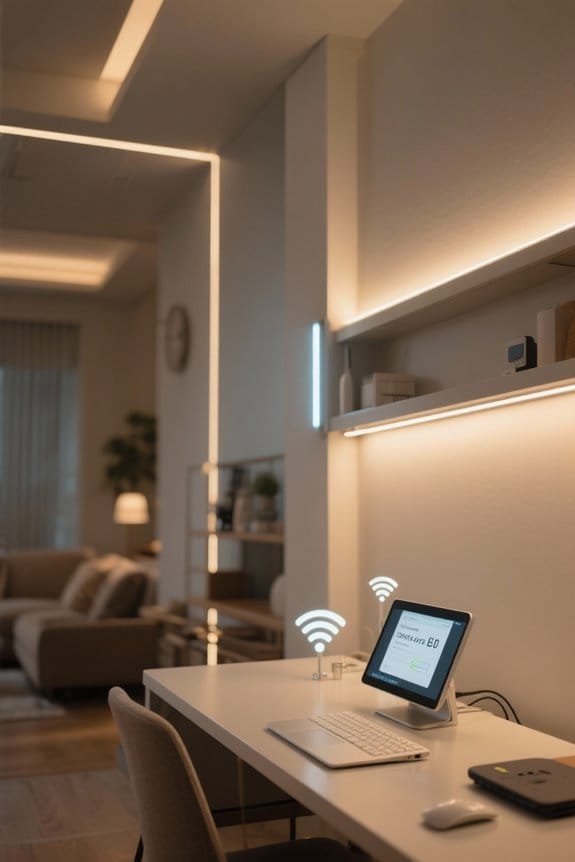
After confirming that the smart LED is adequately positioned for peak performance, it is essential to check the compatibility of the Wi-Fi network. Many smart LED devices, including smart bulbs, operate primarily on a 2.4 GHz Wi-Fi network. Verify that your router supports this frequency. If your router features dual-band capability, confirm the 2.4 GHz and 5 GHz networks have distinct names (SSIDs) to avoid confusion. Additionally, check that the Wi-Fi password is correct, without problematic characters, to facilitate a smooth connection process. For best connectivity, the smart LED device should remain within 30 feet of the router. Finally, consider disabling MAC address filtering, as it can block new devices, potentially including Smart TVs, from accessing the network. While troubleshooting connectivity, remember that Z-Wave technology offers reliable wireless communication specifically designed for smart home devices.
Recommended Products

Empower OE-Level Automotive Scanner with 3-Yr Free Updates – XTOOL D9S V2.0 automotive diagnostic tool: XTOOL Scan Tool D9S offers comprehensive all system diagnostic capabilities, including ECU C0ding, PMI(Offline ECU Pr0gramming), Topology Map, 4K+ Active Tests, 45+ Resets(AdBlue resets, ABS driving test, etc.), FCA, DoIP, CANFD, Pre/Post Scan and Diagnostic Report 2.0, covers for 10,000+ global vehicle makes. Equipped with 4GB+128GB storage, XTOOL D9S delivers 20X faster and more stable Wi-Fi connectivity. With 3 years free updates, it ensures your scan tool stays up-to-date with the latest features and vehicle coverage. 𝐍𝐎𝐓𝐄: Cont-act to verify compatibility 𝐁𝐞𝐟𝐨𝐫𝐞 purchase.

Supports up to 100 listeners simultaneously, expandable to over 10,000+

Ubiquiti 5-PACK UAP-AC-PRO (P/N UAP-AC-PRO-5-US)
Resetting and Reconfiguring Your Smart LED Bulbs
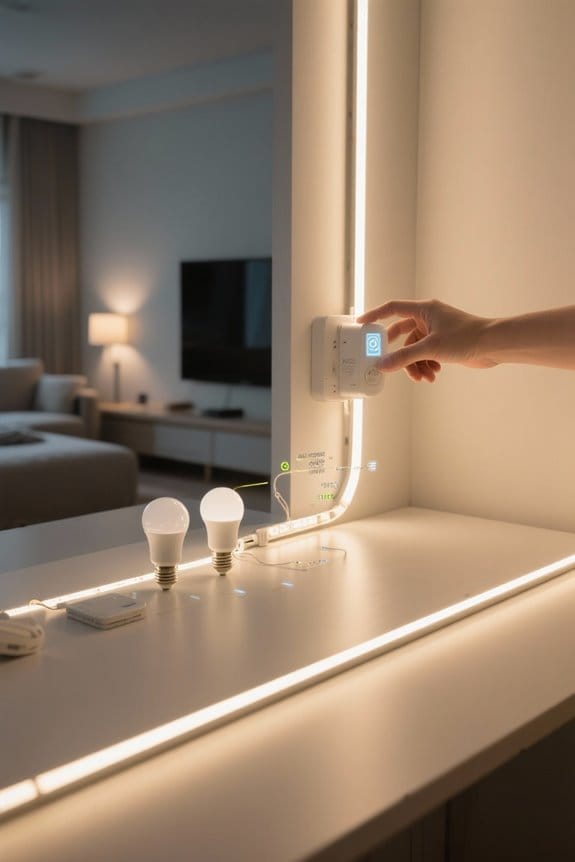
How can one effectively reset and reconfigure smart LED bulbs to restore ideal functionality? To reset your smart LED bulbs, switch them on and off rapidly, typically 5-7 times, until a strobe flash indicates success. Afterward, verify the bulbs are compatible with a 2.4 GHz Wi-Fi network, which is necessary for connection. Utilize the manufacturer’s app for reconfiguration and verify your smartphone is on the same network for better connectivity. Additionally, confirm your Wi-Fi network name consists solely of letters and numbers; special characters may obstruct connections. If problems remain post-reset, check your network settings to verify that no MAC address filters are blocking the device, preventing it from connecting efficiently—much like you would when connecting your Smart TV. For optimal performance, consider that most LED smart lights can last up to 50,000 hours when properly configured and maintained.
Recommended Products
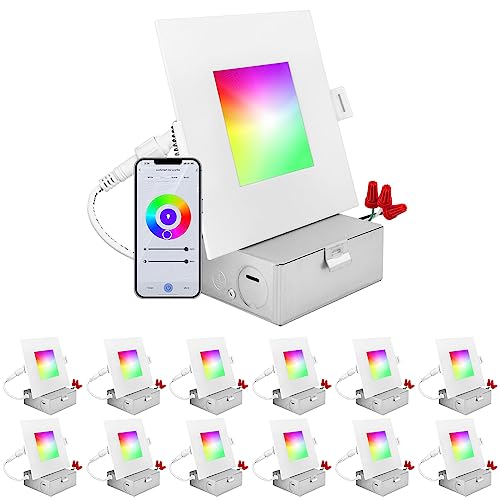
RGBW ADJUSTABLE - Immerse yourself in a world of captivating colors with smart recessed lighting that has a stunning range of 16 million colors and tunable white light between 2000K-5000K. Adjust the hue of these RGB lights for a personalized touch when you are watching movies, playing games, hanging out with friends, or just relaxing at home. You can even dim down to your preferred setting when you need to give your eyes a rest. Be in control of your home from anywhere with these smart lights.

【Smart Remote & Voice Control for Modern Homes】Control your lights from anywhere using the Tuya or Smart Life App (iOS/Android). Enjoy hands-free convenience with simple voice commands via Amazon Alexa or Google Assistant—perfect for turning on lights when your hands are full or entering a dark room at night
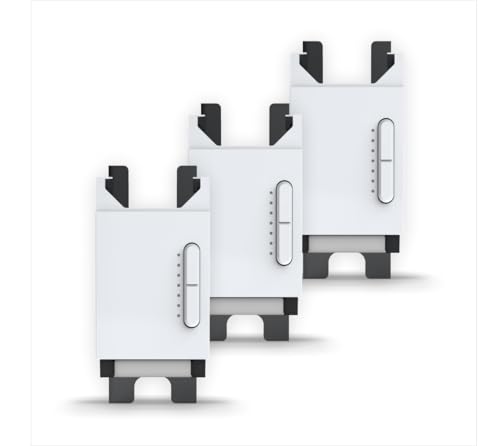
For lights controlled from 3 locations - 1 Master Smart Dimmer + 2 Remote Smart Dimmers included.
Optimizing Router Placement for Improved Signal
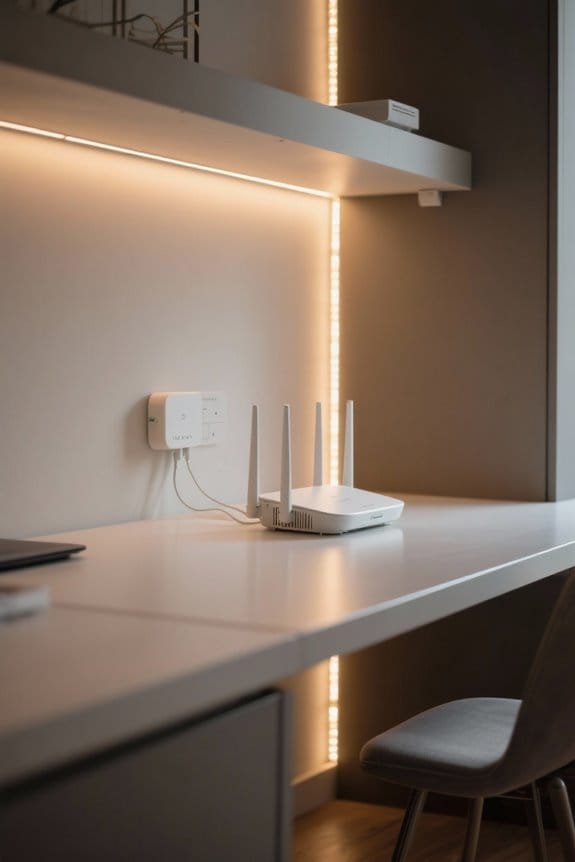
To optimize Wi-Fi signal for smart LED bulbs and other devices, strategically positioning the router becomes essential. Position the Wi-Fi router centrally within your home to maximize its coverage area. Elevate the router at least five to six feet above the floor, as signals may dim when obstructed by furniture and walls. Keep the router clear of physical barriers, such as thick walls and metal appliances, which can disrupt the internet connection. Confirm it is away from electronic devices that may cause interference, like microwaves or cordless phones operating on similar frequencies. Regularly assess signal strength and adjust the router’s placement as necessary to troubleshoot internet connectivity. This proactive approach confirms improved connectivity for all smart devices. For optimal performance, ensure your smart LEDs support motion sensor features which can help maintain reliable connectivity while providing hands-free operation and energy savings.
Recommended Products

25,000Pa Powerful Suction – Smarter, Deeper Cleaning: Freo Z10 Turbo robot vacuum cleaner removes fine dust, debris, and pet hair with high-powered suction, while intelligent sensors adjust cleaning in real time to helps reduce dirt spread during cleaning and ensure every pass is more effective.

THE PINNACLE OF OUTDOOR PERFORMANCE ProLink combines a precisely tuned directional antenna and a Qualcomm Snapdragon X62 modem in one weatherproof outdoor unit. By capturing signal where it’s strongest and eliminating the loss that comes with long coax runs, it delivers faster, more consistent 5G internet directly to your WiFi router. Whether you’re on the edge of coverage or simply tired of unstable speeds, ProLink is built to unlock maximum performance on your network.

THE SPEED OF EERO MAX 7 - With two 10 Gigabit Ethernet ports, you can enjoy wired speeds up to 9.4 Gbps, wireless speeds up to 4.3 Gbps, and multi-gigabit backhaul speeds—making your network seriously fast.
Ensuring a Stable 2.4 GHz Connection
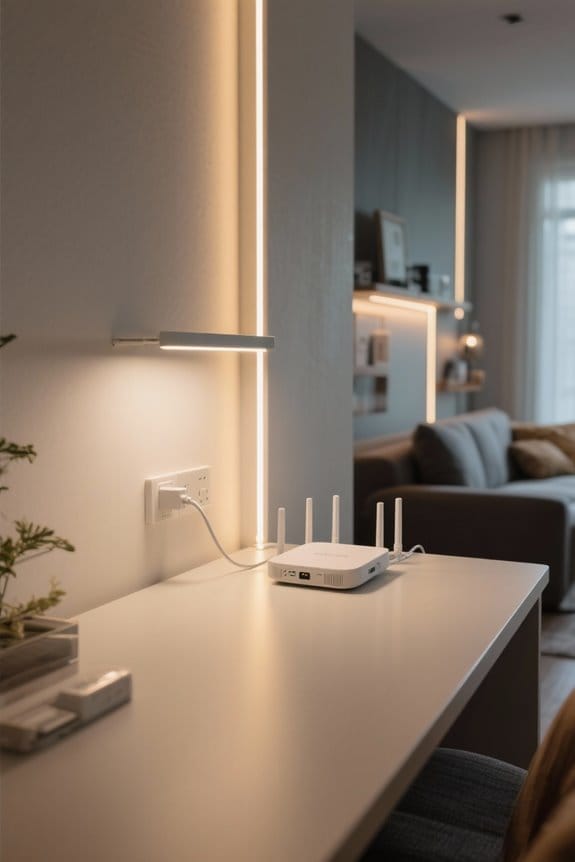
A reliable 2.4 GHz connection is fundamental for the proper functioning of smart LED devices, which typically do not support 5 GHz networks. Verify your router is configured to broadcast a strong 2.4 GHz network. For dual-band routers, connect exclusively to the 2.4 GHz network to avoid potential connectivity issues. If interference arises, temporarily disable the 5 GHz network. Position smart LED devices within 30 feet of the router, as distance can considerably weaken the 2.4 GHz signal. Regularly check and update your router firmware to enhance performance and verify compatibility with these devices. Address these factors diligently to maintain a stable and effective connection, maximizing the efficiency of your smart LED technologies. The ESHine LED Kit provides seamless integration with multiple smart home platforms while maintaining consistent connectivity through its 2.4 GHz compatibility.
Recommended Products


Unrivaled WiFi 7 speeds up to 17 Gbps for real-time gaming, 4K/8K streaming, UHD video conferencing, and AR/VR entertainment with easy setup using the Nighthawk App
No Monthly Fee — All Footage Stays Local: Comes with a pre-installed 32GB memory card in the ElysooBase (expandable to 256GB). All recordings are encrypted and stored locally — no subscription, no hidden fees. Enjoy up to 60 days of loop recording with H.265 encoding. Your data stays private and secure, even if the security camera is lost or stolen.
Verifying Password Accuracy for Network Access
Verifying the accuracy of the Wi-Fi password is essential, as even the slightest mistake can hinder a smart LED device‘s ability to connect to the network. It is advisable to refer to the router’s label for the default Wi-Fi password, guaranteeing correct entry. When entering the Wi-Fi name (SSID), use only letters and numbers; avoid special characters, which can complicate access. To facilitate proper communication during setup, confirm that the mobile device used is connected to the same network as the smart LED device. If adjustments to the password are necessary after setup, be prepared to reset the devices or re-enter the new password to regain network access and guarantee they stay connected to the internet. Installing smart LEDs with aluminum channel diffusers can enhance their performance by protecting against dust and moisture while providing even light distribution throughout your space.
Updating Firmware for Router and Smart Bulbs
Making sure that both the router and smart bulbs have the latest firmware is essential for maintaining a stable connection and maximizing functionality. Regularly check for firmware updates; old versions can lead to connectivity issues. Most smart bulb manufacturers include update notifications within their applications, making it easy to stay current. Additionally, routers may feature automatic firmware updates, allowing the latest security and performance improvements without manual intervention. Consult user manuals or online resources specific to your router and bulbs for detailed instructions on performing these updates correctly. Timely firmware updates not only enhance functionality but also address potential security vulnerabilities, creating a more reliable smart home ecosystem. Prioritize these updates to guarantee seamless device performance. Smart home integration capabilities enable voice control through platforms like Alexa and Google Assistant once firmware is properly updated.
Recommended Products

2200VA / 1980W Pure Sine Wave UPS battery backup.Form factor

PROFESSIONAL-GRADE MOTOR: Achieve a quality finish and smooth routing with a powerful 15 Amp motor

Powerful 15 AMP motor delivers 9,000-22,000 RPM for smooth routing
Reducing Interference From Other Devices
To achieve maximum performance from smart LED devices, it is essential to reduce interference from other electronic equipment. First, verify that smart LEDs operate on a 2.4 GHz Wi-Fi network, as many devices lack support for the 5 GHz frequency. Position the router away from interference sources, such as microwaves, cordless phones, and Bluetooth devices, to enhance connectivity. Consider utilizing Ethernet connections for stationary devices; this action alleviates strain on the Wi-Fi network and minimizes congestion. Regularly review connected devices on your network to remove unnecessary connections, thereby preserving bandwidth for smart LEDs. Finally, reposition smart LED devices to remain within a stronger signal range from the router, reducing the impact of physical obstructions on connectivity. When installing LED fixtures, ensure they support color temperature options between 2700K and 5000K for optimal customization and performance in different environments.
Monitoring Network Traffic for Connectivity Issues
While a stable connection is crucial for ideal smart LED performance, monitoring network traffic can reveal underlying issues that may disrupt connectivity. Administrators should utilize network monitoring tools to analyze connected devices and their data usage. Identify bandwidth issues caused by streaming applications or devices consuming large amounts of data, as this can lead to latency disruptions for smart lights. Regularly review your network to detect unauthorized devices that may be competing for bandwidth. Consider monitoring peak usage times, typically during evening hours, to identify congestion periods. By understanding network traffic patterns, users can make necessary adjustments to optimize performance and guarantee a stable connection for their smart devices, consequently enhancing the overall smart LED functionality. Smart LED systems with motion detection capabilities can further complicate network traffic patterns, especially when multiple sensors are actively monitoring movement within a 10-foot range.
Additional Troubleshooting Steps for Persistent Problems
Address connectivity issues head-on by implementing additional troubleshooting steps when smart LED lights fail to connect. First, make sure the router’s 2.4 GHz network is enabled, as many smart plugs only operate on this frequency. Check the light’s proximity to the router; excessive distance or physical barriers can weaken the signal and cause trouble connecting. If issues persist, reset your network by unplugging your router and waiting for about 30 seconds before plugging it back in. Additionally, confirm the Wi-Fi password entered in the pairing app is correct to prevent errors. Finally, verify the router’s device limit settings; if it has reached its maximum connections, new devices, including smart LEDs, may be blocked from joining. Consider installing high CRI strips to ensure optimal color rendering and visibility while troubleshooting connection problems.
Seeking Professional Help for Advanced Issues
When persistent connectivity issues arise with smart LED devices, seeking professional help becomes a necessary step for effective resolution. Platforms like JustAnswer can connect users with verified experts for tailored tech support. To facilitate a productive consultation, individuals should provide detailed information regarding their setup, such as router model, internet speed measured in Mbps, and previous troubleshooting steps attempted. This information enables professionals to diagnose issues more effectively. Expert assistance may offer recommendations for upgraded routers or configurations designed to enhance connectivity and compatibility. Utilizing professional advice can save both time and money in resolving complex smart device issues, ultimately leading to a more efficient and enjoyable user experience.
Frequently Asked Questions
Why Are My Smart Lights Not Connecting?
Smart lights may not connect due to compatibility issues, home Wi-Fi interference, or outdated router firmware. Ensuring a compatible network and updating firmware can enhance connections, reducing barriers to effective smart bulb functionality.
Why Are My Smart Lights Going Offline?
Amidst a tangled web of signals, smart lights often falter, succumbing to weak Wi-Fi interference or firmware updates disrupting compatibility. Distance from routers and device limits orchestrate their descent into the offline shadows, leaving them adrift.
Why Does My Smart TV Have Trouble Connecting to the Internet?
The smart TV may have trouble connecting to the internet due to Wi-Fi interference issues, necessary router settings adjustments, or limitations in network hardware. Addressing these factors can often resolve connectivity problems effectively.
How to Reset a Smart LED?
To reset a smart LED, one must power cycle it thrice, evoking the flashing heartbeat of a digital home. This ritual reinstates its smart features, aligning seamlessly with the broader tapestry of smart home integration.